Create Logistics
Contents
- Packages
- Packager
- Frogports
- Package Filter
- Re-Packager
- Unpackager
- Clipboard and Hand Pointer
- Postbox
- Tips
- High Logistics
- Rose Quartz
- Transmitter
- Stock Link
- Stock Ticker
- AE2 Stock Bridge
- Redstone Requester
- Table Cloths
- Factory Gauge
Made it to the Steam Age? Create Logistics will improve your item transportation and storage capabilities significantly. Later on in LV you'll even be able to to automatically order specific items or route them around your base! As this is Create, this means Pondering the machines (hold Ponder) will be your best source of information aside from here, so be sure to look through them too.
Packages
Packages
Packages
Packages
Everything to do with Create Logistics revolves around Packages. Each package can contain 9 slots' worth of items.
Packages also have an address, which determines where the package should go. The rest of the logistics system is all about how to move the packages to these destinations!
Fluid Packages
Fluid Packages
Fluid Packages
Fluid Packages
Fluid Packages are the equivalent for fluids. Each fluid package can hold 10,000mB, or ten buckets.
Tip: Shift + Right Click an item package to open it! Mechanical Saws can also do this automatically.
Paketerare
Fluid Packager
When provided with a redstone signal, the Packager will wrap up items from the container it is attached to (you can switch the connection side with a wrench) and output a neat little cardboard package.
Note: Despite the crafting recipe, the packager works without any additional cardboard, so don't worry about upkeep!
Putting a Sign on the Packager will make it automatically label the sign's contents onto all packages as a destination address. This will be more useful once you start working with various ways to route packages around. Note that Framed Signs do not work for this purpose!
Packagers can also unwrap any packages that get put into it, unloading their contents into the attached inventory.
Packaging Items
This setup will automatically extract everything from the chest into packages, which can then be sent elsewhere.
Unpackaging Items
Any packages inserted into this packager will automatically be unpackaged and inserted into the Crate.
Packaging Fluids
Fluid Packagers work the same way.
Unpackaging Fluids
It does not need a pump to move fluids into or out of their attached container.
Frogports
Frogports
Package Frogports are one of three ways you can move packages around and get them to where you want them to be. They can hang packages onto Chain Conveyor lines to be transported along the chain connections. To use them, you first need a network of Chain Conveyors connected to each other using chains, and then power the chain conveyors with rotation.
Right Click a chain before placing down a Frogport to have it interact with that segment of chain.
Frogports placed directly on top of a Packager automatically hang up packages that are created in said Packager.
Note: Either frogport will work with both item and fluid packagers and packages. The only difference is that the copper one can be placed on any side of a block.
Frogports can also receive packages in addition to sending them. If you Right Click on a Frogport, you can see that it has a name you can edit.
This name acts as an address: if any packages that are labelled with a destination address matches this name, the Frogport will automatically collect them by taking them off the chain network!
This collected package will be put into the inventory of the block the Frogport is placed on.
As long as the chain network is connected to the input and output Frogports somehow, the package will eventually find its own way, although you may want to optimize the paths to reduce package travel time on your own.
Frogports
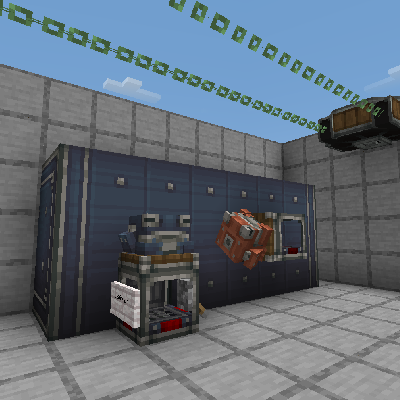
A small setup to send and receive items.
Paket Filter
Packages can be routed using the specialized Package Filter, which can be used just like a filter in any Create machine that supports filter slots, such as Brass Funnels. Just Right Click while holding the filter and type in the address that should be filtered, and any packages with that specified destination address will be let through.
Ompaketerare
The Re-Packager can combine multiple item packages into a single package. This is useful if a request's items are being sourced from different locations, but need to reach their destination at exactly the same time.
It can also separate a combined package back into its components.
Unpackager
The Unpackager is similar to a Repackager, but it can combine item and fluid packages into one, and vice versa.
Tight on space?
Tight on space?
The Hand Pointer and Clipboard can be used to power packagers and set addresses without any adjacent block.
To use the Hand Pointer, just Right Click on any packager or re-packager to force it to be powered, no redstone signal needed!
The Hand Pointer can also be used to change the target of Frogports after they have been placed. To do so, while holding the Hand Pointer, Right Click the Frogport you want to change, then Right Click the new point on the chain to connect to.
To set an address, get an empty Clipboard and type the address you want on the first line (make sure to start the line with a "#"), then Right Click on any packager to set the address, no sign needed!
Postboxes
Postboxes are used to route packages around using Train Networks. You first Right Click a Train Station to link the Postbox to that station before placing it, and from then on any trains that stop there will be able to interact with the Postbox (given it is within 4 blocks of the station).
Much like Package Frogports, they can be named. Passing trains will then pick up any packages whose destination does not match the Postbox's name.
Furthermore, if the train has any packages in its inventories that do match the Postbox, they will be passed into the Postbox's inventory instead.
One last cool thing about Postboxes is that when extracting automatically from them (via chutes, funnels, etc), only packages with a destination that matches the Postbox's name will be taken out and any packages with a different destination will remain inside to be loaded onto trains later.
Package Tips
Packages are randomly created from a selection of four* possible items, so stuff like GregTech's Item Filters will be very tedious to set up! We recommend using the Package Filter wherever you can, but...
* Four for fluids, and actually a lot more for items, as there's several secret rare variants
...If you really want to try using other methods to move packages around, the destination address is stored as NBT data in the tag Address. For example, a package with the destination address "Home" will have in its NBT data: {Address:"Home"}.
(Continued on next page...)
Package address filtering actually supports a simplified form of RegEx. This means you can:
- Match any length of string with *
- Match any single character with ?
- Match a single character from a group of characters surrounded by [] (e.g. A[cr]t will match 'Act' and 'Art', but not 'Ant')
- Match a single character that does not belong to a group of characters surrounded by [! ] (e.g. A[!cr]t will match 'Aft' and 'Apt', but not 'Act' or 'Art')
- Match a string from a list of strings given inside {} (e.g. TerraFirma{Craft,Greg} will match both TerraFirmaCraft and TerraFirmaGreg)
- All previous symbols can be escaped. For example, A\* will be read as A* and only match 'A*'.
High Logistics
Moving packages around is good and all, but surely that can't be all there is? Well, you're exactly right. There's much more that can be done with packages, including reading inventory contents and having things be delivered remotely, and later on even automatically sending ingredients to be processed based on an item's threshold!
But before delving into High Logistics, some preparations are in order.
The Transmitters that would be required for crafting such equipment can only realistically be produced via high-energy light refracted through a very unique mineral: Rose Quartz. In other words, we need both a Basic Laser Engraver and some way of obtaining a Rose Quartz Lens, so you better get to getting these done, eh?
Rose Quartz
Rose Quartz
Rose Quartz
The only natural source of Rose Quartz of a high enough quality to easily craft the Lens out of is located far, far to the north in freezing temperatures (under -10°C). Getting Kaolin clay flashbacks yet?
Rose Quartz only forms in the cores of ancient glaciers. Although not common, these are easily identified by their Blue Ice outer shells.
Besides the temperature requirement, they only spawn in Ice Sheet or Glaciated biomes.
The Rose Quartz will be found inside - first as ore, then as compressed raw ore blocks in the very center.
item.greate.exquisite_rose_quartz_gem
item.greate.rose_quartz_lens
What we need is Exquisite Rose Quartz, which you can get by crushing, washing, and then sifting the raw ore you mined. The Exquisite gem has a 3% chance of being sifted out, but you only need one such gem to proceed.
Do not smelt the ore as this will only get you normal quality Rose Quartz!
The same preparations you once may have made for Kaolin Clay will apply here as well: Prepare a lot of food, portable water to drink, warm clothes, and some transportation. (Boats are nice, but Aircraft should be well within your reach at this point).
A Glaciar Core
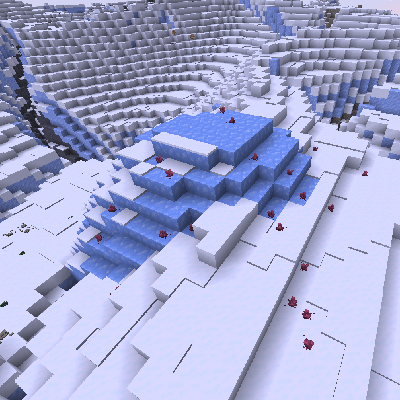
Glaciar Cores are surrounded by small buds of Rose Quartz. They are easily identifiable on your map.
Lagerlänk
The first High Logistics machine you can make is a Stock Link, which can be used to create a Logistics Network. When placed onto any side of a Packager, the Stock Link will make the inventory the Packager is attached to visible to the network!
On its own, the Stock Link isn't super useful, but it is a core component of all the other machines yet to come...
Remember to Right Click on an existing Stock Link before placing one down to tune the two to share the same network. To cancel this, you can simply craft the Stock Link by itself to clear its attunement.
Check the ponder for more information!
Example
The Packager will only create a package when the Stock Link receives a signal from elsewhere on the network.
Lagerindikator
If you've already used Stock Links to provide various items to a Logistics Network, the next step is to make something that can call in said items remotely... And that's where the Stock Ticker comes in. Much like the Stock Link, you first need to Right Click an existing link to attune the Ticker to that network.
You then need to place down a Blaze Burner or any mob in a Seat next to the Stock Ticker to have them work as a Stock Keeper.
Now that the poor creature is indentured for life, you can click on them to see all the items on the Logistics Network. You can even search for items in the network, and create an order to be sent to specific addresses!
There's no range limitation for this, although you do need to create your own way of routing around the packages that will be ordered through the Stock Links as well as have the link in question chunkloaded for this to work.
Additionally, you can place Filters inside the Ticker so that only specific items are shown, or set up categories of items.
Place a mob on the seat, then Right Click them to request items which will be deposited in the Steel Crate.
Redstone Begärare
The Redstone Requester can be seen as a more specialized Stock Ticker. You can't view items in the Logistics Network from it, but you can set up an order to be requested automatically every time the machine gets a redstone signal.
This can be very useful for setting up automated provision of specific items - consider using a Threshold Switch or Smart Observer alongside this, for example.
Remember that like any other High Logistics machine, you need to Right Click on an existing link before placing the Requester down to attune it to that network first!
Table Cloths
Table Cloths are Create's system for player-owned shops! Each Table Cloth can sell one item. You'll need a small setup with a Stock Ticker, Packager, and a Stock Keeper (a Blaze Burner or mob in a seat) to get started.
Right Click the Stock Keeper with your Table Cloth, then select the item to sell. Then just place the Table Cloth down on a block or some Scaffolding.
After it's placed, Right Click the slot in the front of the Table Cloth with an item you want as payment. Afterwards, Right Click and hold to change the amount of that item.
To buy items from another player's shop, Right Click the Table Cloths with an empty hand to add them to a Shopping List.
Once they're ready, Right Click the Stock Keeper with the Shopping List to buy the items!
A Shopping List can be cleared by Shift + Right Click. Payment is then stored in the Stock Ticker, and the shop owner can collect it later or send it back to their base!
AE Stock Bridge
If you invested heavily into Create's logistics network, you might despair at the thought of having to tear it all down to replace it with AE2 in HV. The Stock Bridge acts as a bridge between your ME network and your Create one. Check its Ponder to learn how to set it up.
We still recommend moving over any old setups to AE2 eventually, mostly because it's much lighter on your game's performance.
Factory Gauge
Factory Gauge
The Factory Gauge is the ultimate High Logistics machine, requiring you to have the technology to make both Aluminium and Diodes before you can craft one - But it's extremely powerful to match.
The first thing a Factory Gauge can do is be placed on a Packager to monitor the amount of a specific item in the connected inventory. When set up like this, the gauge's outer border will be Blue and it is said to be in Restocker Mode.
The other way of using a Factory Gauge is to have it automatically ordering ingredients when the amount of target products in a Logistics Network falls below a threshold.
This is the operating mode when the gauge is placed on any block that is not a Packager; the outer border will be Yellow, and it is said to be in Recipe Mode.
In either mode, You can set a specific value that the Factory Gauge should attempt to maintain. You then have to set a target address in the GUI which is where the automatic order made will be directed to a target address of your choice.
For the Restocker Mode, the specified address should ideally point towards the packager the gauge has been placed on so that the incoming packages are automatically unwrapped into the target inventory.
For the Recipe Mode, the specified address should point towards wherever you manufacture the product.
Additionally, you need to set up one additional gauge for each type of ingredient used, then connect them to the first gauge with 'Add New Connection' in the GUI.
If the product you are trying to craft in Recipe Mode is a normal crafting recipe, you will need to 'Use Mechanical Crafting' and ensure that the package is unwraped into a 3x3 Mechanical Crafter array.
It is important that the package is not unwrapped en route, as the package itself holds crafting recipe instructions - if the ingredients must come from different sources, look into using a Re-Packager to act as a buffer for the packages.
Note: Factory Gauge requests are technically 'Promises', which are guarantees by the network that the items in question will be delivered at some point in the future.
This is done to prevent the items from being over-requested. By default, these promises never expire; This means the promise will remain in place forever if the items are unlikely to be delivered in the future.
You can change this behavior by adjusting the bottom section of the gauge GUI, which will limit how long promises stick around for.
Unsurprisingly, Fluid Factory Gauges are the same thing but for fluids.
Be sure to check out the ponder for the Factory Gauges too! It has a lot of visual examples of how to set it up.
Note: If you get really into Gauges and wish you had more options, TFG has optional compatibility with Create: Extra Gauges! Just install the mod and new recipes will show up.
Comments